Inside Git: How It Really Works
if you haven’t used git don’t read this article because before reading it you should have at least used git or used some commands
Look, we've all been there. You start using Git because everyone says you have to, and pretty soon you're just typing the same commands over and over
git add .
git commit -m "fix stuff"
git push
It works fine... until it doesn't. One day you get a merge conflict that looks like code you have never seen or you accidentally reset something and lose work, or Git just refuses to do what you want. Suddenly it's frustrating as hell.
the fix isn’t learning commands or just rewriting commands again. It's finally understanding what Git is actually doing behind those commands. Once you get the internals, everything clicks no more guessing, no more fear.
this article will explain how git works internally what is .git folder and what it actually has inside it and how git tracks changes using hash and objects
1. First Things First: Git Doesn't Track Changes like we think
almost everyone you ask or see talking about git they say git tracks changes in your files that’s true but it’s misleading like what you know till now ? or think that git tracks changes line by line that’s not true Git stores full snapshots of your entire project at each commit not differences
every time you commit git
takes a snapshot of tracked files
reuses unchanged data
links it to previous snapshots
let’s take an example and understand it more clearly
suppose i have a shopping.txt
Start: Your first list
File content:
milk
eggs
bread
You commit this (Version 1). Git takes a full photo (snapshot) of the file exactly like this.
Then: You add one thing
You change the file to:
milk
eggs
bread
apple
You commit again (Version 2). Git takes another full photo of the entire file now.
it looks like git saved two different files , but here is the best part about git Git notices that the first three lines ("milk", "eggs", "bread") are exactly the same as before. So it doesn't duplicate those it just reuses the old parts and only saves the new line ("apples").
So even though Git is saving full snapshots, it's smart and only stores the truly new stuff.
Later: You remove something
Now change it back to just:
milk
eggs
Commit (Version 3) Git takes yet another full snapshot but again it reuses the old "milk" and "eggs" parts that already exist from Version 1. It doesn't save full copies again.
Why call it snapshots not changes?
Because when you want to go back to Version 1, Git can instantly give you the complete exact file from that moment no guessing or patching things together. It's like pulling out an old photo that's already perfectly complete. That's why it's fast, safe, and doesn't balloon in size.
2. The .git Folder :-
Run git init in a folder, and Git quietly creates a hidden directory called .git.
Most people ignore it, Big mistake the .git folder is your Git repository, when we run the command git init after that everything that happens in that folder will be tracked and even if you delete the working copy or code files Git can restore them from .git but if you delete the .git your entire history ,branches ,commits are gone your files remain but they are now normal files no longer version controlled
git is like time machine if it knows something it can bring it back, edit it , can see the commits etc
you can go back into past see what you did but if you break the time machine nothing like this will happen
Structure of .git Folder
.git/
├── objects/ # All your data: files, folders, commits stored as "objects"
├── refs/ # Pointers to branches and tags
├── HEAD # Points to your current branch/commit
├── index # The staging area (more on this soon)
├── config # Project-specific Git settings
└── ... # Other stuff like hooks, logs
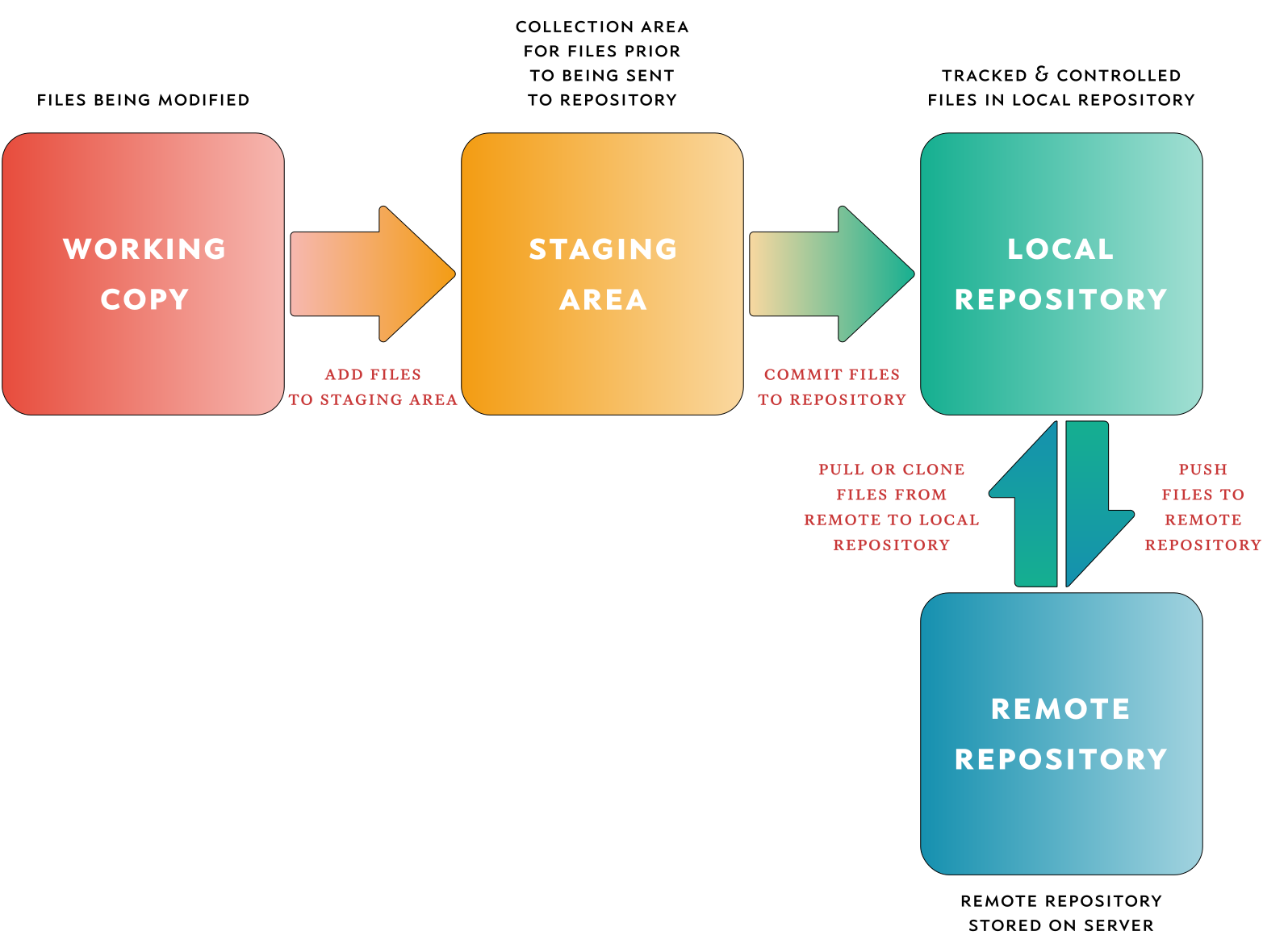
This folder is Git's private database. Treat it like the heart of your project.
3. Git's Core Building Blocks: The Three Objects
Git is an object database. Everything important is stored as one of three types of objects, each identified by a unique SHA-1 hash (that long hex string like e69de29bb2d1d6434b8b29ae775ad8c2e48c5391).
Blob:
it stores pure file content, No filename, no path just the raw bytes of the file.
If two files have same content, they share the same blob. Super efficient.
Tree: Represents a directory. It lists filenames and points to blobs (for files) or other trees (for subfolders). This rebuilds your folder structure.
project/
├── index.html
└── style.css
tree object:
index.html —→blob
style.css——>blob
Commit: The snapshot itself. Points to one root tree your whole project, plus metadata: parent commits, author, date, message.
it contains
reference to a tree
reference to a parent commit
Every commit → points to a tree → which points to blobs (and sub-trees).
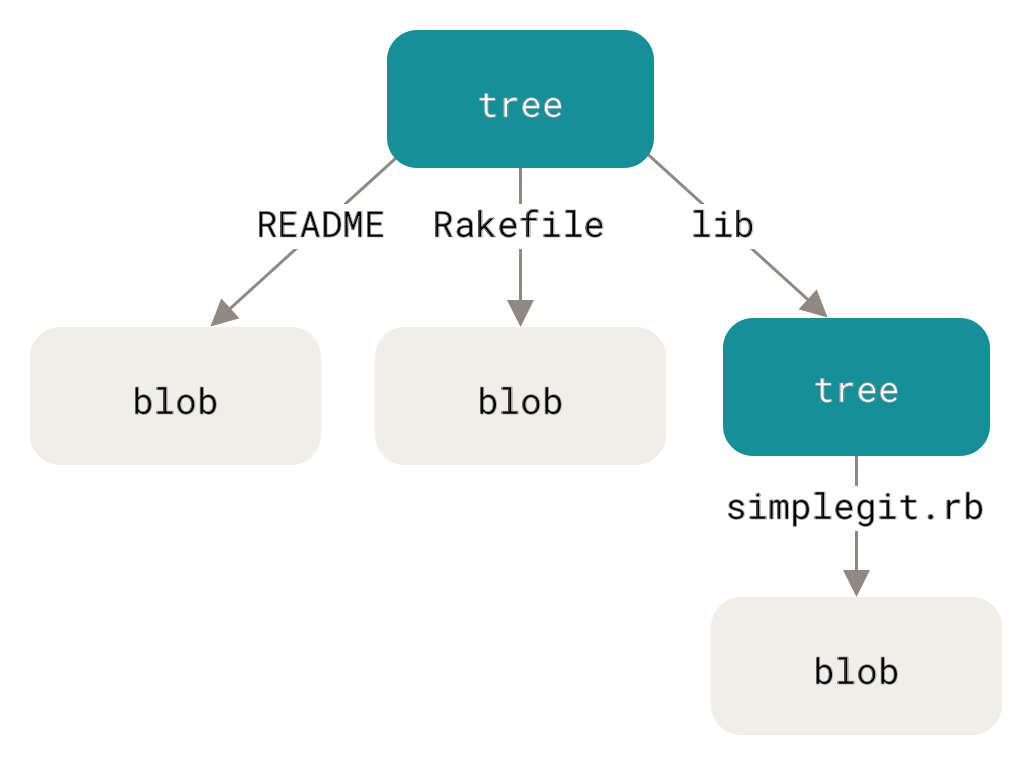
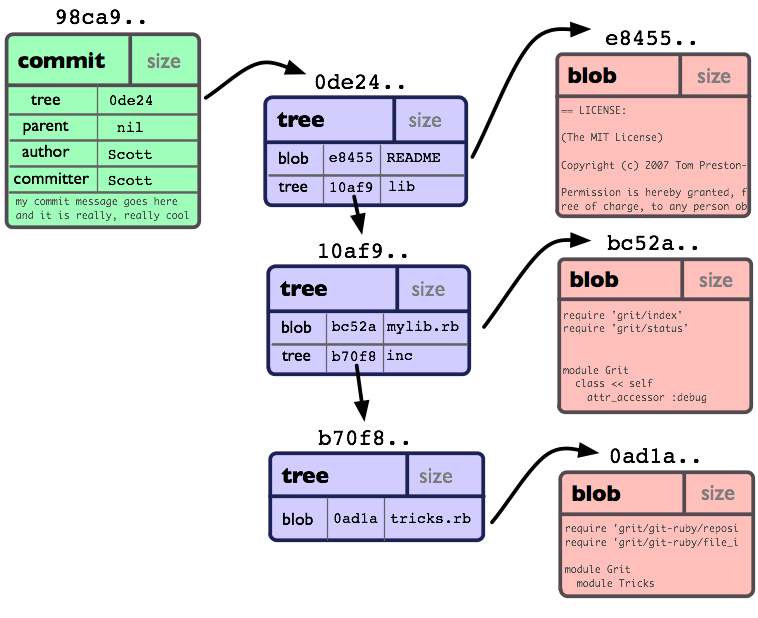
Commit C1 |
└── Tree
├── app.js → Blob
└── index.html → Blob
every commit forms a chain through parent commit
4. How Tracking Changes Actually Works
Since Git uses snapshots:
When a file changes, Git creates a new blob for the new content if the files are unchanged reuse the old blob
The new commit gets a new tree that points to the mix of old + new blobs.
Git detects changes by comparing hashes. Same hash = same content = no duplication.
Lets discuss what is hash?
this term often seems confusing but once you understand it all makes sense i hope i can make you understand
i hope you know about ASCII value (google it) or go to this website and read about it https://www.w3schools.com/charsets/ref_html_ascii.asp let’s design a hash function from it
hash= ΣASCII(char)* position
ASCII(char)=ASCII value of the character
position=at what place the character is we position starts from one like in cat position of c=1
let’s say we take cat
c ASCII(99) 1 = 99
a ASCII(97) 2 = 194
t ASCII(166) 3 = 348
Σ it means summation so add all the three values 99+194+348=641
hash(“cat”)=641 now change the letter the value will change
now git doesn’t use such a simple hash function it it takes time author etc.. like it’s much more complex when you change a simple text in the file hash value changes aggressively
5. The Famous Three Areas
Forget memorizing commands. Think in areas
Working Directory: Your actual files on disk. What you edit in your editor.
Staging Area (Index): A "preview" of your next commit. Lives in .git/index.
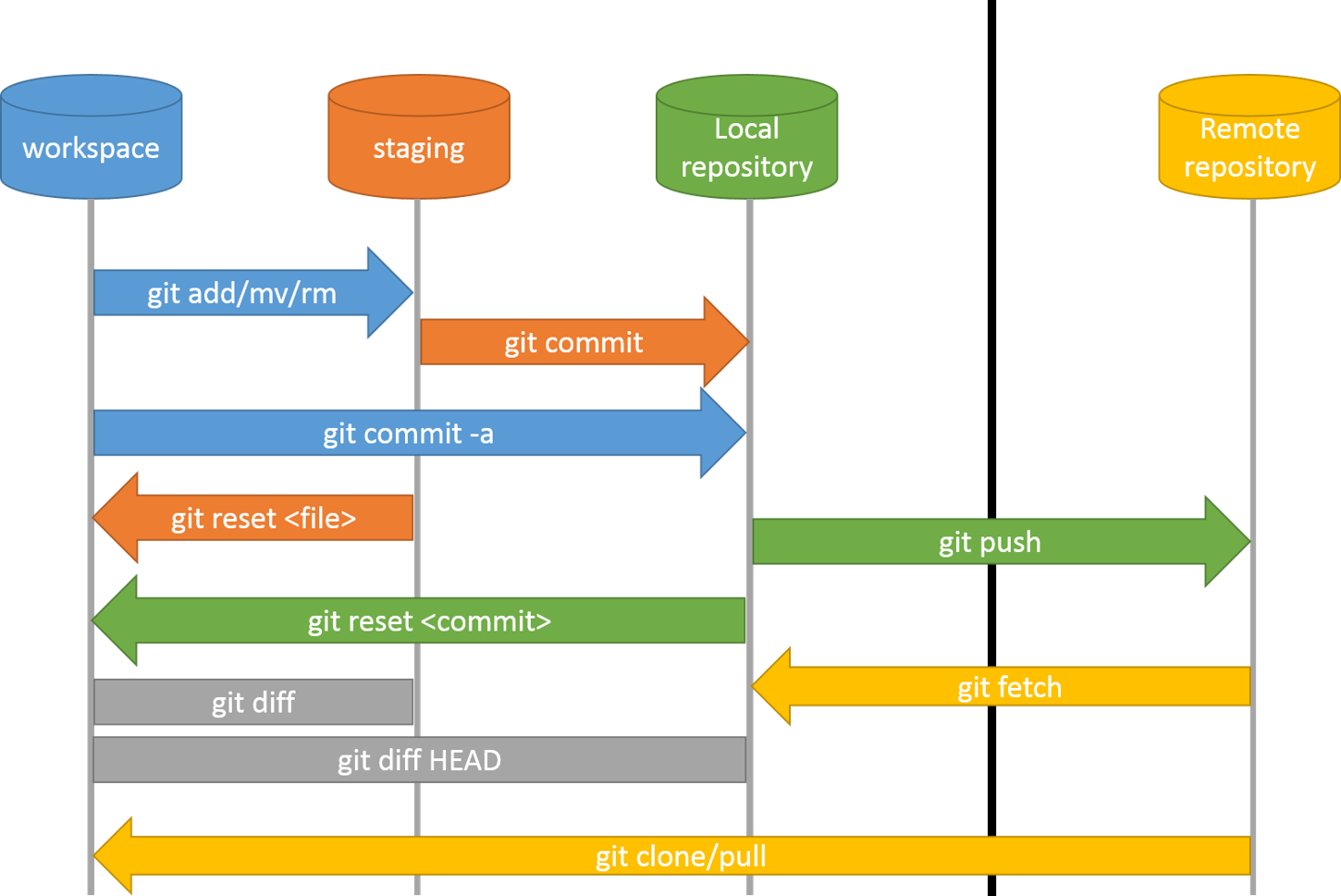
- Repository : Permanent storage in .git/objects. Your commit history.
The flow:
You edit files → git add moves them to staging → git commit saves the staging snapshot as a commit in the repo.

6. What Really Happens When You Run git add and git commit
Let's trace it with an example. You modify app.js.
git add app.js:
Git reads the file content.
Computes its hash → creates a new blob object and stores it in .git/objects/.
Updates the index (staging area) to include this blob (with filename/path) for the next commit.
index is a temporary area that stores what will go into next commit
git add doesn’t create a commit it prepares a snapshot
git commit:
when you run git commit -m “message”
it reads the current index and builds tree objects from it.
Creates a new commit object pointing to that root tree, linking to the previous commit.
Updates your current branch (in .git/refs/heads/main) to point to the new commit.
Moves HEAD to stay on the branch.
nothing is deleted nothing is overwritten

Nothing gets overwritten. Old commits stay forever until garbage collected much later
7. HEAD and Branches: Just Pointers
HEAD: it is a pointer which tells git this is the current commit i’m on
usually HEAD—> main ——> latest commit
when you commit HEAD moves forward
when you checkout HEAD moves backward
Branches: Tiny files in .git/refs/heads/ containing a commit hash.
Creating a branch? Just make a new pointer to the current commit. Switching? Move HEAD.
That's why branching is basically free.
8. Now Git will make sense
Once you understand how Git works internally, Git stops feeling scary or random.
Things that earlier felt like errors now feel logical.
Let’s break this down one by one in plain language.
Why Merge Conflicts Suddenly Make Sense
Before understanding internals, a merge conflict feels like
earlier when merge conflicts used to occur we were like what went wrong etc…
Now think in Git’s language:
You have two commits
Both commits changed the same file
Each change created a different blob
Git sees two different versions of the same content
Git’s problem:
since you have changed different blobs of the same file git is confused which blog you want to keep
So Git asks you to decide, A merge conflict is not an error it’s Git asking for human input when logic isn’t enough
What git reset Really Does
Earlier, git reset sounded like confusing and it went over the head now after understanding that HEAD is just a pointer
git resetmoves that pointer backward or forward
Depending on the option:
It may also update the staging area
Or even your working files
Lost Commits Are Usually Not Lost
Sometimes you think:
I lost my commit. It’s gone forever.
Internally:
Commits are stored as objects in
.git/objectsEven if a branch no longer points to them
The data still exists
That’s where this command helps:
git reflog
reflog shows:
Where
HEADwas earlierWhich commits you visited
Git keeps a record of your moves
You can usually recover work if you know where to look
summary
Git saves complete pictures of your project every commit It smartly reuses the old data via hashes no wasteful copies
The .git folder is everything: Your code is just the current view. All history commits branches live in this hidden folder
Three simple objects power it all:
Blob: Raw file content
Tree: Directory structure (names + pointers)
Commit: Snapshot (points to tree + parent)
Three areas mental model:
Working Directory (your files)
Staging Area (what's prepped for commit)
Repository (permanent history in .git)
git add → git commit flow: Add builds blobs and updates staging. Commit creates trees + new commit object, advances your branch.
Git isn't scary magic. It's a clever system of snapshots built from blobs/trees/commits, stored safely in .git with cryptographic hashes. Understand this once and merge conflicts, resets, branches all of it just make sense
thanks for reading :)